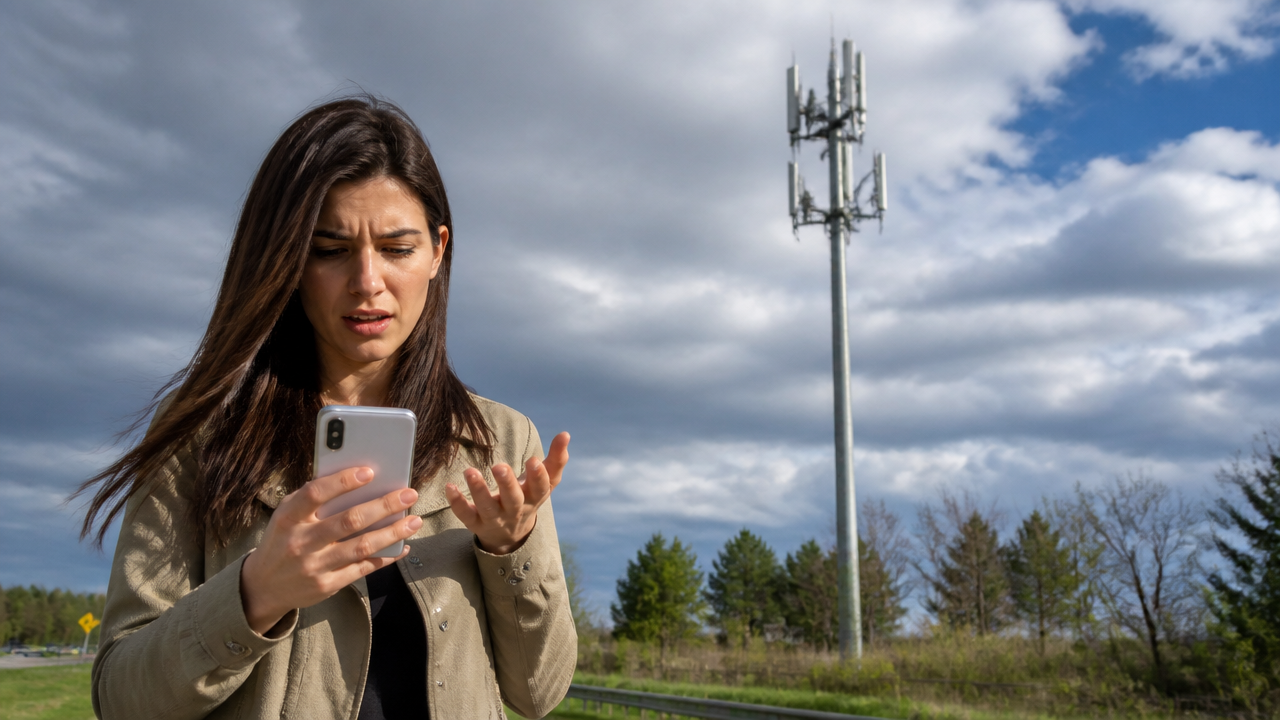
When your T-Mobile service slows to a crawl or drops entirely, the frustration hits fast. But what’s actually happening behind the scenes—and more importantly, what can you do about it? T-Mobile network issues can come from multiple directions: infrastructure failures, device misconfigurations, environmental factors, or simply too many people using the network at once. This guide walks through the real causes, practical fixes you can try right now, and what to expect during a major outage.
Quick Questions and Answers
Question: Why is my T-Mobile service slow today?
T-Mobile slowdowns can come from network congestion, weak coverage, device settings, or a broader outage. T-Mobile’s support pages point users to network-mode changes, APN resets, software updates, and VPN checks, while outage guidance says to wait for service restoration and use Wi-Fi Calling if available.
Question: How do I know if T-Mobile has an outage?T-Mobile’s Network Outages page is the place to check when service problems are widespread. The company says users generally do not need to do anything except stay aware, and it will notify customers once the outage is resolved, usually within two days.
Question: Can a bad SIM card cause T-Mobile problems?
Yes. Troubleshooting guides for T-Mobile issues commonly list loose, damaged, inactive, or invalid SIM cards as possible causes of no service or failed connectivity. In practice, reseating or replacing the SIM is a standard first-line fix when signal and account checks do not resolve the problem.
Key Takeaways
Network outages are usually triggered by infrastructure failures, not individual device problems.
Most signal and data issues can be solved by restarting your device, updating carrier settings, and resetting network configurations.
During an official outage, Wi-Fi Calling is your best option—troubleshooting won’t help until service is restored.
Gateway placement and in-home Wi-Fi coverage matter just as much as cellular signal for T-Mobile Home Internet.
Environmental factors like tower congestion and weather can cause temporary connectivity drops that resolve on their own.
Understanding the Anatomy of Network Disruptions
Large-scale outages are rarely caused by a single point of failure. Instead, they often cascade from upstream infrastructure problems. In June 2020, T-Mobile experienced a massive outage that knocked out voice and data services across large portions of the network. According to reporting from The Verge, the disruption started with a leased fiber-circuit failure from a third-party provider in the Southeast, followed by a malfunction in the backup circuit. What made this worse was how the failure propagated: the network couldn’t automatically reroute traffic efficiently, so the problem spread.
The FCC’s investigation into that same outage uncovered deeper issues. When T-Mobile introduced a new router into the network, it created a routing misconfiguration that amplified the original equipment failure. Even worse, a latent software flaw had been sitting dormant for months—and during this outage, it interfered with customers’ ability to set up or receive voice calls. This is the real danger of major network disruptions: they expose weaknesses that may have been hidden until the system was already under stress.
Localized connectivity problems work differently. When your phone struggles to hold a signal in one location, it’s often due to tower congestion, weather conditions, or the physical act of moving between cell tower sectors. A building’s construction materials, tall structures nearby, or even dense tree coverage can block signal. Environmental factors like storms can temporarily degrade network performance across a region until conditions improve.
Identifying Common Causes of Service Failure
T-Mobile service breaks down into two broad categories: network-side issues and device-side issues. Understanding which one you’re dealing with saves time and frustration.
Network-side problems include official outages (which T-Mobile announces), capacity limits during peak congestion, and roaming restrictions. If you’ve received a text message from T-Mobile about roaming limits, that’s an indicator your service may be constrained by your plan’s data policy or regional roaming agreements. These are beyond your control—you either wait for the outage to clear or the congestion to ease, or you switch to Wi-Fi.
Device-side problems are where you have real leverage. Outdated carrier settings can prevent your phone from registering correctly on the network. Access Point Names (APNs) tell your phone how to connect to T-Mobile’s data infrastructure; if they’re misconfigured, data won’t work even if signal is strong. A loose, damaged, inactive, or incompatible SIM card will cause no service or intermittent connectivity. Incorrect network-mode selection (like forcing 4G LTE when 5G is available, or vice versa) can tank performance. Your phone might also be set to a mode that doesn’t match T-Mobile’s current infrastructure in your area.
T-Mobile 5G Home Internet operates in a hybrid space. It relies on cellular signal to backhaul data to your home, but once inside, it’s a traditional Wi-Fi problem. If your gateway is crammed into a closet or corner, the Wi-Fi signal will be weak throughout your house. Home internet performance is tied to both gateway placement and how many devices are pulling data simultaneously. Poor placement can look exactly like a network problem when it’s really just an in-home distribution issue.
Immediate Actions for Signal and Data Issues
Start with the basics. Restart your phone. This sounds obvious, but it forces your device to re-establish a handshake with the nearest cell tower and can clear temporary glitches.
Next, check your network mode. Open your phone’s settings and look for the network or cellular menu. Set it to Auto—this lets your phone connect to whatever network type is available (5G, 4G LTE, 3G, etc.). If you’ve manually forced a single mode, you may have locked yourself out of T-Mobile’s fastest or most reliable signal bands in your area.
Turn off any active VPNs. VPNs encrypt your traffic and can interfere with how your phone negotiates with T-Mobile’s network. If a VPN is running in the background, disable it and test your signal again.
For data issues specifically, reset your APNs to default. This tells your phone to revert to T-Mobile’s standard settings for accessing the mobile data network. On iPhone, you can force this by going to Settings > General > Transfer or Reset > Reset Network Settings. On Android, the process varies by phone, but it’s usually in Settings > System > Reset > Reset Wi-Fi, Mobile & Bluetooth. Note that this will also forget saved Wi-Fi networks and Bluetooth pairings, but it’s a powerful fix for persistent data problems.
Update your software. Check both your device OS and carrier settings. T-Mobile periodically pushes out carrier settings updates that adjust how your phone communicates with the network. If an update is waiting, install it while connected to Wi-Fi.
Remove your phone case temporarily. Thick cases, especially those with metal components, can interfere with antenna reception. Test signal without the case to rule this out.
If problems persist and you’re on iPhone, reset your network settings. Go to Settings > General > Transfer or Reset > Reset Network Settings. This clears all network configuration data and forces your phone to re-register with T-Mobile’s network. You’ll need to re-enter Wi-Fi passwords afterward, but this step resolves many persistent signal problems.
Run a speed test to establish a baseline. Visit speedtest.net on your phone and run a test. Write down your download and upload speeds. If they’re extremely low but you have signal, it’s a network-side capacity issue or a configuration problem on your phone. If the test fails to connect entirely, suspect the APN or network registration.
Troubleshooting T-Mobile Home Internet Specifics
T-Mobile’s 5G Home Internet is less finicky than mobile service, but its own set of problems. The gateway—the device that receives the cellular signal and broadcasts Wi-Fi—should sit in a central, unobstructed location in your home. A closet, basement, or corner will dramatically reduce Wi-Fi coverage in other rooms.
If coverage is weak in certain rooms, don’t blame the network. Use a mesh Wi-Fi extender to fill gaps. Place it in a spot that’s equidistant between the gateway and the dead zone. Run a speed test in the weak area before and after adding the extender; you should see improvement.
Disconnect non-essential devices during high-load periods. If you’re video conferencing or streaming while someone else is gaming and another device is doing cloud backups, the gateway can get overwhelmed. T-Mobile’s support page recommends prioritizing which devices matter most during critical usage times and temporarily disconnecting others.
Test your actual speeds using Speedtest.net. This differentiates between a true network problem and an in-home distribution issue. If speeds are good at the gateway but terrible in a bedroom, it’s a Wi-Fi placement problem. If speeds are low everywhere, the issue is the cellular backhaul or network congestion.
Issue
Likely Cause
Quick Fix
When to Escalate
No Wi-Fi signal in part of home
Gateway placement or distance
Move gateway to central location or add mesh extender
If extender doesn’t help, call T-Mobile support
Slow speeds at gateway
Network congestion or carrier issue
Disconnect non-essential devices, run speed test
If speeds stay below 50 Mbps, report to T-Mobile
Phone can’t connect to gateway
Wi-Fi password wrong or device forgotten
Check password, “forget” network on phone, reconnect
Reset gateway to factory settings if repeated
Gateway not getting signal
Obstruction or no coverage
Move gateway to window or higher location
Coverage map check; may need different location
Intermittent drops
Too many devices or interference
Limit connected devices, move gateway away from microwave
Check for competing Wi-Fi networks on same channel
What to Do During a Verified Network Outage
When T-Mobile announces an outage on its Network Outages page, stop troubleshooting. Nothing you do will fix it.
The first thing to do is enable Wi-Fi Calling if your phone supports it. As long as you’re connected to Wi-Fi, you can make calls and send texts even though the cellular network is down. Go to Settings > Phone > Wi-Fi Calling (iPhone) or Settings > Network & Internet > Advanced > Wi-Fi Calling (Android) and turn it on.
T-Mobile explicitly states on its outage page: “There’s nothing else you need to do; we just want you to be aware.” Restarting your device, resetting settings, or trying different network modes won’t help. The problem isn’t your phone—it’s the network.
Expect an official notification within two days once service is restored. T-Mobile may ask you to power cycle your device after that notification arrives to ensure it reconnects cleanly. But don’t power cycle during the outage itself. Wait for the all-clear.
Use Wi-Fi for everything you can while the outage is active: messaging apps, email, video calls, browsing. Rely on Wi-Fi Calling only for voice calls that must go through the cellular network. This preserves your Wi-Fi bandwidth for critical tasks.
My Experience With T-Mobile Network Issues: Causes, Fixes, and What to Know
I’ve troubleshot T-Mobile problems for years—both my own and friends’ phones—and the pattern is always the same. Nine times out of ten, it’s either a SIM card that’s come loose in the tray, outdated carrier settings that need refreshing, or someone accidentally forcing their phone into 2G mode. I once spent 30 minutes diagnosing “terrible signal” on a friend’s iPhone before realizing she’d toggled Wi-Fi off, which meant the phone was trying to download a carrier settings update over LTE and failing. Once Wi-Fi went back on, the update installed and everything worked again.
The most useful thing I’ve learned is that carrier settings updates are silent and automatic—but only over Wi-Fi. If your phone is stuck without data and you don’t know why, try connecting to any available Wi-Fi network first, then run through the basics. It sounds backwards, but Wi-Fi often saves you when cellular is broken.
The other insight that’s saved me time: network congestion looks identical to a broken phone. Slow data, dropped calls, failures to send texts—all the same symptoms. The only way to tell is to check T-Mobile’s outage page. If there’s no outage listed for your area and you see high speeds on a speed test when you’re standing next to the gateway, your phone’s fine. Move to a less congested time or place, and it’ll improve.
What’s your most common T-Mobile glitch—is it signal drops in a specific location, or does it feel more random?
FAQ
Q: Does Wi-Fi Calling help during a T-Mobile outage?
Yes, if you’re connected to Wi-Fi. T-Mobile tells customers on its Network Outages page to turn on Wi-Fi Calling for calling and texting needs during an outage. This is the only workaround that actually functions during a major network failure.
Q: What causes T-Mobile calls to drop randomly?
Dropped calls can result from weak signal, movement between towers, overloaded cells, software settings, or device-side issues such as Bluetooth audio routing or network configuration problems. T-Mobile’s support guidance emphasizes restarting the device, updating software, and resetting network settings when signal problems persist.
Q: Should I reset network settings on my T-Mobile phone?
T-Mobile recommends network-setting resets in some troubleshooting paths, especially for Apple devices with persistent signal issues. The support pages pair that with carrier settings checks and software updates, which suggests the reset is most useful when configuration errors may be blocking service.
Q: What is the difference between congestion and an outage?
Congestion usually means the network is overloaded by too many users, which can slow data or make calls unstable in a specific place and time. An outage is broader and more severe; T-Mobile’s outage guidance tells users to rely on Wi-Fi Calling and wait for restoration rather than trying device fixes first.
Q: Does T-Mobile Home Internet have different issues than mobile service?
Yes. T-Mobile’s home internet support focuses on gateway placement, Wi-Fi coverage inside the home, and reducing load from too many connected devices. That means home internet problems often involve in-home wireless distribution as much as the cellular backhaul connection.
Q: What happened in T-Mobile’s 2020 network outage?
Reporting and FCC material say the outage began with an equipment failure and was worsened by routing and backup-system problems. The FCC also said a latent software flaw had been present for months and affected voice call setup during the event. This real-world example shows how infrastructure failures can cascade into widespread disruption.
Q: How can I troubleshoot T-Mobile no service issues?
T-Mobile recommends restarting the device, checking Wi-Fi Calling settings, turning off Wi-Fi to ensure you’re on the mobile network, setting network mode to Auto, and updating software. If the problem continues, Apple users are told to reset network settings and users may also need to manually select a network. You might also like reading about PlayStation Network Outages to understand how other major networks handle service disruptions.
Conclusion
T-Mobile network issues span a wide range of causes—from infrastructure failures you can’t control to device configurations you can fix in minutes. The key is knowing which category your problem falls into. If T-Mobile has announced an outage, accept it and use Wi-Fi Calling. If not, start with the basics: restart, check network mode, update software, and reset APNs. For home internet, focus on gateway placement and local Wi-Fi optimization.
Most connectivity problems resolve themselves with a restart or a settings reset. Device issues are typically fixable in under 10 minutes. True network outages are rare, but when they happen, they’re widespread enough that thousands of people will be experiencing the same problem simultaneously. Check the official outage page, enable Wi-Fi Calling, and wait.
Keep T-Mobile’s support pages bookmarked. They’re specific, regularly updated, and cover both device-level and network-level troubleshooting in detail. And if you’ve been without service for hours and there’s no outage listed, contact T-Mobile support directly—that’s when individual account issues, SIM problems, or plan restrictions may need human intervention. Like checking on Xbox service status, understanding when an issue is widespread versus account-specific matters.
References
T-Mobile Support. (n.d.). Internet and data issues. https://www.t-mobile.com/support/devices/device-troubleshooting/internet-and-data-issues
T-Mobile Support. (n.d.). Signal issues / no service troubleshooting. https://www.t-mobile.com/support/devices/device-troubleshooting/signal-issues–no-service-troubleshooting
T-Mobile Support. (n.d.). Troubleshooting | T-Mobile 5G Home Internet. https://www.t-mobile.com/support/home-internet/customer-support
The Verge. (2020, June 17). T-Mobile explains why its network went down hard, claims only a fifth of calls were lost. https://www.theverge.com/2020/6/17/21293950/t-mobile-outage-june-explainer
Federal Communications Commission. (2020). T-Mobile network outage analysis. https://docs.fcc.gov/public/attachments/DOC-367699A1.docx
Apple Support Communities. (n.d.). T-Mobile Connectivity issues. https://discussions.apple.com/thread/254924284
History Tools. (2026). Why is T-Mobile Not Working? A Comprehensive Troubleshooting Guide. https://www.historytools.org/consumer/t-mobile-not-working
Sarah Anderson . J
I’m the mom behind Wise Mom Blogger, where everyday creativity meets real-life motherhood. I share easy DIY crafts, cozy knitting and crochet projects, beginner-friendly sewing ideas, and family-tested recipes—plus quick baking hacks that make homemade feel doable on busy days.