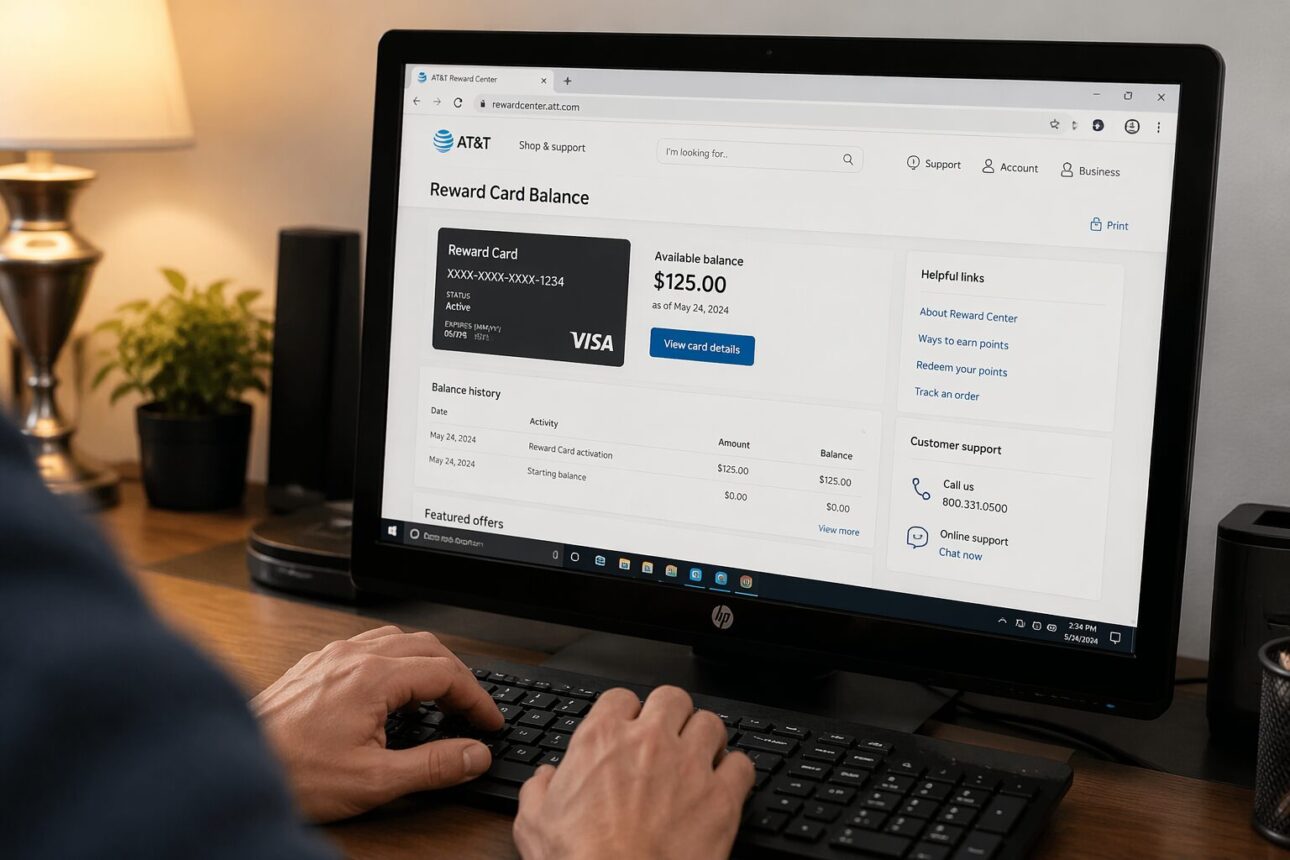
Wondering how to access your AT&T reward card balance without fumbling through multiple websites or phone menus? Checking your balance is straightforward once you know where to go and what information you’ll need. Whether you have a physical Visa Reward Card or a Virtual Visa Card, the process takes just a few minutes from any device with internet access. This guide walks you through every step, from activation to viewing your current balance, plus troubleshooting tips for when things don’t go smoothly.
Quick Questions and Answers
Question: Why do I need to activate my AT&T reward card first?
Answer: You must activate the card before checking the balance to ensure it is linked to your account and ready for use. Activation requires entering the first four digits of the card number and creating a PIN on the AT&T Reward Center website.
Question: Can I check my AT&T reward card balance on mobile?
Answer: Yes, you can check your balance on a mobile device by visiting the AT&T Reward Center website. However, some users recommend using a desktop browser for the best experience when activating the card and viewing balance details.
Question: Do I need my full card number to check the balance?
Answer: You need the first four digits of your reward card number to activate and check the balance online. For phone inquiries, you may need the full 16-digit card number and your billing ZIP code.
What You Need
Item
Purpose
Notes
AT&T Visa Reward Card or Virtual Visa Card
Proof of ownership and account access
Physical or digital version accepted
First four digits of card number
Verification during login
Located on front of physical card or in email for virtual card
Internet-enabled device
Access to the online portal
Desktop browser recommended for best performance
Billing ZIP code
Optional identity verification
Needed for phone support inquiries only
Customer service phone number
Alternative balance-checking method
Found on back of physical card or in account materials
Step 1: Gather Your Card Information
Before you head to the reward center website, collect the essential details you’ll need. Find your physical AT&T Visa Reward Card or locate your virtual card details in your email inbox—whichever version you received. The card’s first four digits are the key piece you’ll enter online. If you received a virtual card, the number should appear in the activation email sent by AT&T. Write down or have this information ready before opening the website, so you don’t have to hunt for it mid-process.
Step 2: Choose Your Device and Browser
Desktop browsers work best when accessing the AT&T Reward Center. While mobile access is possible, the website displays more smoothly on a larger screen, especially when you’re navigating menus for the first time. Open Chrome, Firefox, Safari, or Edge—any modern browser will work. Clear your browser cache before visiting to avoid loading errors, or use an incognito or private browsing window if the site feels sluggish. This simple step saves frustration later.
Step 3: Navigate to the Official AT&T Reward Center
Go directly to https://rewardcenter.att.com/cardbalance.aspx, the official portal for checking your reward card balance. Make absolutely sure the URL matches exactly—never click a link from an untrusted source, as scammers sometimes create fake pages. Bookmark this link in your browser once you’ve verified it’s correct, so you can return quickly next time. The page should load with a clean interface and clearly labeled input fields.
Step 4: Enter Your Card’s First Four Digits
Look for the input field labeled “Reward Card Number” or similar text. Type only the first four digits of your card number—nothing more. If you enter the full card number, the system will reject it. For physical cards, these digits appear on the front in the upper left corner. Virtual card numbers from email are formatted the same way. Double-check before clicking next; a typo will force you to start over.
Step 5: Click “Manage Your Rewards” to Access Your Account
Once you’ve entered the first four digits, a button labeled “Manage your rewards” or “Check balance” should appear. Click it to proceed. The system will verify your information and pull up your account dashboard. This usually takes 5–10 seconds. If nothing happens after 15 seconds, refresh the page and try again. Sometimes the server is slow, but it’s usually quick on desktop.
Step 6: Review Your Current Balance and Transaction History
After logging in, you’ll see your reward card dashboard. Your current available balance displays prominently at the top of the page. Below that, a transaction history shows recent purchases, dates, and amounts. Scroll through this section to verify all charges are accurate. The balance updates in real time or within 24 hours after a transaction processes, depending on when the merchant submits the charge. If your balance seems wrong, note any disputed transactions and contact support.
Step 7: Activate Your Card If You Haven’t Already
If this is your first time accessing your reward card, you may need to create a PIN before you can use it for purchases. The system will prompt you to set a four-digit PIN during the activation process. Choose something you’ll remember but others won’t guess. Once activated, your card is ready to spend. If activation is required and you skip it, your card won’t work at checkout—so complete this step fully.
Tips for Success
Set up mobile alerts through the reward center if you prefer real-time updates. Many users miss transactions because they forget to check the portal regularly; alerts solve this problem. Change your PIN every six months if you use the card frequently, just as you would with a debit card. Write your PIN down somewhere secure at home—not on your card. If you reach your reward limit, stop using the card immediately; additional charges may be declined or charged to your AT&T account instead.
Desktop is genuinely worth using for the first time. Mobile browsers often crop the page or hide buttons, making activation harder than it needs to be. Once you’re comfortable, checking on your phone is fine for quick balance peeks.
Troubleshooting Common Issues
Page won’t load. Clear your browser cache and cookies, or try an incognito window. If the site still fails to load, check your internet connection and try again after 5 minutes—the server may be temporarily down.
“Card not found” error after entering the first four digits. You may have typed the wrong digits, or the card hasn’t been fully set up in AT&T’s system yet. Wait 24 hours after receiving your card before trying again. If it’s been longer and you still get this error, call customer support.
Balance shows zero even though you received the card. Some reward cards require additional activation steps or claim verification. Check your email for any follow-up messages from AT&T with a claim number or additional instructions. Contact support if you can’t find this information.
Card number doesn’t match the portal. Make sure you’re using the first four digits of the card number printed on your physical card or listed in your virtual card email. Some people confuse the card number with the PIN or account number—these are different. Verify you have the right number.
Can’t create or remember your PIN. The reset option should appear on the login page. Click “Forgot PIN?” and follow the prompts. AT&T will verify your identity using the first four digits and your billing ZIP code, then let you set a new one.
FAQ
Q: Are there multiple ways to check my AT&T reward balance?
Yes, you can check your balance online at the AT&T Reward Center or by calling the customer service number on the back of your card. The online method requires activation, while the phone method uses automated prompts.
Q: How do I check my AT&T Virtual Visa card balance?
To check your AT&T Virtual Visa card balance, visit www.card-support.com. Unlike the physical card, the virtual card balance is managed through this separate support site rather than the main Reward Center.
Q: When will my reward card appear so I can check it?
Your reward card typically appears in the Reward Center within six weeks of activating your qualifying service. You may receive a notification email or letter with a claim number to access your reward.
Q: Is my billing ZIP code required to check the balance?
Yes, your billing ZIP code is required to verify your identity when checking the balance or activating the card. You will need this along with your card number to access your account information.
Q: What steps do I take to activate my AT&T reward card?
To activate, go to the AT&T Reward Center, enter the first four digits of your card number, and select Manage your rewards. Follow the prompts to create a PIN, which allows you to view your balance afterward.
Q: Will AT&T decline transactions if I check my balance incorrectly?
AT&T will decline any transaction that exceeds the available card balance, so verifying your balance is important before purchasing. You can also set up mobile alerts to track your balance automatically.
Q: Which website should I use to check my AT&T reward card balance?
Use rewardcenter.att.com/cardbalance.aspx to check your AT&T Visa Reward Card balance. Enter the first four digits of your card number and select Manage your rewards to access your account.
My Experience With How to Check Your AT&T Reward Card Balance the Easy Way
I’ve checked my AT&T reward balance dozens of times now, and honestly, the first attempt was needlessly stressful. I typed my full card number instead of just the first four digits and got locked out for 15 minutes—total rookie move. The second time, I used my phone browser and the page looked mangled, buttons hidden, text overlapping. That’s when I learned why everyone recommends desktop. Now it takes me under two minutes from start to finish. The real insight here is that the portal is solid once you know what to expect; the confusion isn’t a flaw in the system, it’s just unfamiliar territory. I also discovered that setting up balance alerts actually works—I haven’t missed a transaction since. One thing that still catches people off guard is the Virtual Visa card living on a different site entirely. Most assume everything funnels through the main reward center, so when their virtual card isn’t there, they panic. It’s a small design quirk that creates real friction. What’s your experience been—did the first four digits trick catch you too, or did you figure it out faster?
Conclusion
Checking your AT&T reward card balance is a quick, secure process once you know the steps. Visit https://rewardcenter.att.com/cardbalance.aspx, enter your first four card digits, and access your account within seconds. Desktop browsers deliver the smoothest experience, especially for first-time activation. If online access doesn’t work for you, calling customer support with your full card number and billing ZIP code provides an equally valid alternative. Keep your PIN private, monitor your transaction history regularly, and set up mobile alerts if you want real-time updates. The reward card system is designed for simplicity—follow these steps and you’ll have full visibility into your balance and spending anytime you need it.
I’m the mom behind Wise Mom Blogger, where everyday creativity meets real-life motherhood. I share easy DIY crafts, cozy knitting and crochet projects, beginner-friendly sewing ideas, and family-tested recipes—plus quick baking hacks that make homemade feel doable on busy days.